Making Still Images Move

Burlesque
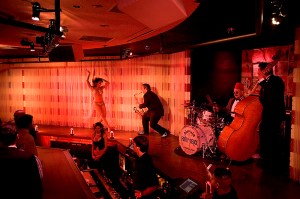
Burlesque club, Las Vegas (click image for motion sample)

I’m often asked how to prep still images and how to make them move in a multimedia/video piece.  My initial response to this question is to reply with a series of questions – “Why do you want to make your images move?” “What’s your motivation? What do you want to communicate to the viewer?” “Do you need sound and movement to better tell your story?”

I’m not one to do things just because I can – I need a reason.  For me a still image is an entity in and of itself – a moment in time to be studied and contemplated.  When I present still images in a multimedia presentation – those “moments in time” become part of a greater whole.  That new entity becomes a different visual message with sound and motion becoming the underlying spine of the piece.  Added information that’s needed to convey that particular story. The still images become sequences and the sound and movement of the piece create the “feel” and “pace” of the whole.

As far as the practical aspects of creating a multimedia piece – the first step is to choose an editing software that works into your workflow.  I use Final Cut Pro Studio on a Mac.  I use Final Cut Pro (within the suite)  if I don’t have a lot of images to edit but lately I’ve been using Motion (also included in the Studio suite)  – because it’s easy – once you know it. You don’t need the depth of these software applications  to create a simple multimedia piece.  There are plenty of software applications to choose from  – iMovie and FCP Express in the Apple family, Adobe Premiere (cross platformed if using an Intel Mac) , Sony Vegas for PC’s  and simpler programs like Soundslides or Audacity.

There are many tutorials on this subject – check out Ken Stone or Lynda.com – both great places to learn.  In the meantime I will share my recipe for how I size and prep my images for multimedia presentations.  Like anything else, there are hundreds  of ways to get to the same end – but these are my suggestions that I find work best.  Another note – I use large image sizes so that I when I bring the images into my editing timeline – I have room to zoom into the images without having to  enlarge them beyond 100% in the video application.

My sizing/prepping suggestions for still images:

RGB color mode

Srgb color profile for SD (standard def)

HDTV (Re.709) color profile for HD (hi def)

Tiff, PSD or PNG – better than Jpeg

Don’t over sharpen image – it will jitter on screen

Use de-interlace filter for web videos – but this is something you need to test – I don’t always like the effect this filter has.

Sizing – I always upsize my images 2.5 x needed for video timeline  if I will be moving them “Ken Burns” style. Below are different specs for HD and SD and different aspect ratios:

Standard Def – DV NTSC 4:3 – 1800x1350x72 (pixels)(res)

Standard Def – NTSC 16:9 – 2132x1200x72 (pixels)(res)

HD – 720p – 3200x1800x72 (pixels)(res)

HD – 1080i – 4800x2700x72 (pixels)(res)

It’s really never been easier to prep still images in an application like Photoshop because there are lots of built in presets. I always prep all my assets and import them into my editing software before I even begin to edit.  That way I don’t need to depart from the edit and lose a train of thought whenever I need to add a still image or other graphic.

Have fun – and when you do decide to move an image – ask yourself why first?

The Business of Video

The “business” of video encompasses a lot of things –  your marketing strategy, your cost of doing business, your skill set needed to survive in business, your management of employees or outside contractors and paperwork.  For now I’ll speak to paperwork and how critical it is in communicating with clients.

A paperwork trail starts with an estimate for a job and I don’t take the process of estimating lightly.  I try to get as much information that I can when a client comes to me and asks me to bid on a job – or asks me  to provide an estimate for a job I’ve already been hired to do.  I keep a database of past SOW’s (Statement of Work) to use as references. While every job is different, I use these archived SOW’s as a starting point.

In addition to estimating the costs of crew, equipment, location needs, pre-production and post-production, I  clearly state terms as well as a schedule for post-production – including client response time and completion dates.

Terms – Here is where I state rights and  “usage” of the finished product – where will it be used and for how long.  I also spell out payment terms, cancellation fees as well as provide an accurate description of exactly what I’m going to deliver.  For instance:

  • 10-minute video to be delivered on DVD and compressed files for the web.
  • One day shoot on location at………….includes 2 interviews and b-roll
  • Post production – edit will include x amount of still images – sized and digitally provided by client – logos  provided by client– stock photos and/or footage – narrative (voiceover) track and music.
  • Payment – one third upon signed SOW – one third after shoot – and balance due upon delivery of final product.
  • Cancellation terms and fees
  • Change fees
  • How many edit revisions are included and the additional hourly editing costs if more revisions are needed.

Schedule – This is extremely important in video production – a schedule sign off by the client that stipulates delivery dates for each part of the process. The reason this is critical is that if the client delays things on their end – it’s clearly understood that the rest of the schedule gets extended in terms of deadline dates.  Otherwise if your client needs their boss to approve things  and their boss has an unexpected out of town trip come up – thus delaying the process – you won’t be left with half the time you need to deliver the final product.  Example of post production schedule:

  • Aug. 31 –  Script approved by client
  • Sept. 1  –   Casting reel delivered to client
  • Sept. 7  –   Talent decisions made by client
  • Sept. 20  – Shoot date
  • Sept. 25  – Voiceover recorded
  • Sept. 26  – All logos, graphics and still images provided by client
  • Oct. 5 –     Rough Cut delivered to client for review
  • Oct. 12 –   Any edit changes noted by client and communicated to production house.
  • Oct. 19 –   Final cut delivered.

Lastly here’s a link to AICP (Association of Independent Commercial Producers) with examples of bid forms and contracts that are helpful in terms of bringing to mind all the things that should be covered in your SOW.

Video, Editing and Chroma Key (green screen)

Even though I started shooting and editing video some 10 years ago – I can honestly say that I still have a lot to learn.  The “learning” part of my craft has been non-stop.  I continue to learn as technology constantly pushes us all in that direction.  But I love it.  I love raising my bar every chance I get.  And these days, even though the learning curve may be steep in certain aspects of video production – it’s also a lot easier to access information and help than it was 10 years ago.  Again – thanks to the volumes of information online – at the click of a button.

I love the editing process of video production because this is really where I craft the story.  I can get totally lost in the story and how I can mold that in whatever direction I choose in the edit room.  But I’m not a professional editor and I have the utmost respect for what a pro brings to this part of the process.  So I lay down my rough cut – to get the storyline down and then hand it off to a pro to take it to the next level.

I’m editing a recent shoot that was quite challenging on all accounts.  A lot of what was shot, was shot on “green screen”. Green screen or “chroma key” is the process of removing a background color, – green for video – blue for film – so that the “subject” or “object” can be placed into another background in post. There is a lot of info out there on green screens so I won’t go into it in depth, but the biggest thing you need to know is how to properly shoot green screen so you won’t have a major melt down in post – or won’t have to spend a fortune for an editor to clean up your mistakes.  ResidentialExterior_NewTech

A couple of tips for shooting on green screen:

•    Turn off edge enhancements or sharpening in Picture Profiles – in camera menu
•    Create a new Green screen Picture Profile w/o sharpening
•    Keep subject lighting off background
•    Keep background lighting off subject
•    Keep green screen as far away from subject as possible
•    Minimize seams, wrinkles, folds
•    Even out your green screen lighting within 1/2 stop
•    Brightness level should be about one stop under key light on your subject.
•    Light your subject complimentary to your inserted background
•    Don’t use dimmers – changes color temp toward red – not good for keying
•    Create an edge or separation light – keep it subtle!!
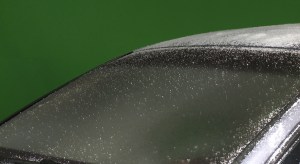
•    Watch out for reflective objects and surfaces (CAR SURFACE) that can pick up green screen

So if you’ve successfully shot a good clean composition as described above – then of course you need to put things together in post. Windshield OutsideThis used to be a tedious process and would involve a lot of work in post production.  But thanks to some incredible plug-ins available – you can get a pretty amazing “key” without a lot of hours in the editing room.
I found a product that really helped me out.  DVmatte Blast and DVmatte Pro from www.dvgarage.com. These plug-ins will work inside Final Cut Pro as well as Motion.  I chose to work within Final Cut.  I was amazed by not only how easy it was to use but by the price as well.  DVmatte Blast was $99 but I purchased DVmatte Pro for $199 because it gave me more “tweaking” options.  And as always whenever I need to learn a new piece of software – I went to http://www.lynda.com.  So instead of laboring with greens screens in post for an entire day – I got the job done in a matter of a couple of hours – and I had a lot of compositions to make.

I love to learn but I also like to lead some sort of a personal life – away from the computer.  And these days – thanks to a little help from my “friends” I’m achieving a nice balance.

Video Production in the Deep Freeze

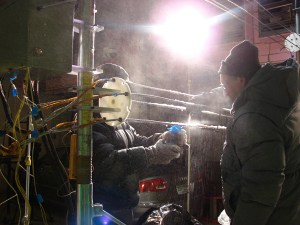
I just spent the last week in New Hampshire working on an “industrial” video for a new business venture that will be licensing an amazing new “ice” technology. It was perhaps the most challenging job that I’ve had in many years – especially from a technical level.  One day we worked from 8AM – midnight in a “cold room” at the US Army Cold Regions Research and Engineering Laboratory (CRREL) shooting “ice” experiments.  We were dealing with extremes on all levels.  The Russian scientists scientists– brilliant electrical engineers – were pushing their own boundaries as they ran tests with ice on power lines and automobiles and as much as I was witnessing this work in sub zero temperatures – it was amazing to watch them work. If I hadn’t been so busy with my own technical challenges – I would have loved to just observe them and try to get into their head.  scientists2You could almost see their brains working – just by watching their faces.  Then to see the triumph in their eyes when their experiments worked – what a thrill.  I now need to go to Russia.
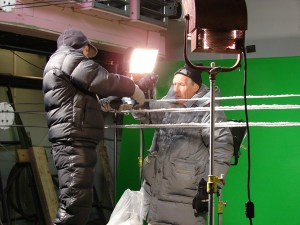
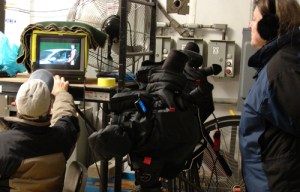
My partner Tom had done a great job with pre-production, making sure we would be fully prepared to work and have our equipment work in these extreme cold temperatures.  We put the cameras into “polar mittens” mittens to keep them warm and swapped out the warm packs as we shot late into the night.  We had to erect large “green screens” so that in post I can insert winter scenes.  Problem was our green screens were large pieces of fabric and the chill blowers were blowing them all over the place.  We tried to anchor them but in the end we had to turn the blowers off during the shoot. Thank goodness we didn’t need usable audio. We used hot lights and a lot of them.  Used every extension cord we had and every outlet in the room – 10,000 watts.  Ironic huh – hot lights in a “cold room”.  Because of that we had to leave the lights on the entire time because we knew that when we turned them off – we’d get condensation on the bulbs.  When we finally did break the set down at midnight – we turned the lights off, let them cool a bit and put garbage bags over them so that as they warmed we wouldn’t get moisture on them.  Didn’t really work too well though.  setWe did the same thing with the cameras and that worked great.  Because we had the lights on all day and were using long extension cords – one cord got over heated and actually melted and fused to itself.  The Russian electrical engineer noticed it – Thank God – or we would have burned down the building.
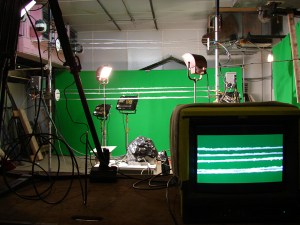
We shot an interview with another brilliant Russian scientist who was passionate about ice and also shot b-roll of all kinds of things, the campus (we were at Dartmouth), labs, refrigerators, icemakers and the computers in the cad labs. All in all things went quite well considering the adverse conditions we were working in and pushing our equipment and ourselves to the limit. One HUGE bummer was that the assistant that Tom had hired  – who came recommended from another photographer – quit after the first day.  We got through the shoot though – but had to muster up everything we had within us.  The client wrote today to say he was extremely pleased with the roughs he had seen and impressed with our fortitude on the shoot given the situation.

Now on to phase two – to record the narrative, research a ton of stock footage and photos, pick the music, work with the motion graphics team and put it all together.  As much as the postproduction inevitably involves a lot of work and long hours – I love this part.  This is where the story comes together and is really crafted.  And that’s always the best part for me.

Photos ©Sheldon Tefft

Tips for Shooting Better Videos

1.    Figure out your “story” before you get into the editing room.
2.    If interviews are needed – make a list of good questions that will lead to insightful answers and concise sound bites.
3.    Always think about your “audio” – listen to your room sounds.
4.    Capture your audio with external mics – not the mic in the camera.
5.    Wear headphones – camera meters only indicate that you’re getting sound – but it may not be good sound.
6.    Shoot and move – getting wide, medium, tight and close-ups from various angles.
7.    Anticipate what’s coming next and be in the right spot to get the shot.
8.    When shooting, think about how you will “get into” and “out of” a shot in the finished piece.  Play it out in your head.
9.    Shoot action and reaction – both points of view.  Example:  Teacher and student’s reaction
10.    Don’t talk over your video – even if you think you might not want to use the audio – because you never know.
11.    Use a tripod for long lens shots.
12.    Get lots of close-ups especially if the finished piece if for the web.  You’ll be happy you did when you get in the editing room.
13.    Have a plan but be prepared to be spontaneous and let serendipity happen.

Editing Anywhere

My partner and I recently completed a documentary called Freedom’s Ride. We documented two groups of high school students from diverse backgrounds as they retraced the Civil Rights Movement of the 1960’s. http://vimeo.com/4106326.

It was the first time we went HD and the first time we went tapeless. The shoot and working on the fly is a story in itself, but for this entry I’ll talk about the edit. Since the shoot itself was of the trip and interviews, the material was brought into the system along the way. When I got to home base, I transfered the files into mov files for Final Cut, imported them into my project and stored the media on external hard drives.

My intitial rough cut was 90 minutes long and was only intended for the students and teachers who had taken the journey. I wanted to make sure that all the kids were included in that edit. It also became the structure of the piece.

After that first cut, I got involved in other things,  but I knew that I was headed up to Maine in a month and I wanted to do the next edit working completely mobile while there.

I packed my MacBook Pro loaded with Final Cut Pro Suite, one external hard drive, a zip strip, headphones and a mouse into a relatively small backpack and headed up to Rockport, Maine. While my partner took The Platypus Workshop, I’d set up my portable editing suite at either the Rockport or Camden Library. It was quiet, peaceful and the Camden Library had the added plus of a beautiful seascape right out the window.

By the end of 9 days, I had cut the piece down to 28 minutes. My goal had been to finish before I headed for home. I not only made my goal, I got to show it to the Platypus participants who gave it a thumbs up.