HDSLR Video – The Camera is Just the Beginning

Many still shooters make the same mistake when jumping over to video – they only think about the camera and the shoot. When this happens, what quickly follows is mild to severe panic when they realize that audio is even more important than the visual and post-production is video is far different than in stills. On top of that, if you shoot video like a still photographer – you’ll want to kick yourself when you get in the editing room.

The good news is there are plenty of resources when embracing these various skills and learning curves than when I started shooting video over ten years ago.

Here’s a few great sites, listservs and blogs that you should bookmark:

http://asmp.org/tutorials/video-tutorial.html

http://photocinenews.com

http://www.cinema5d.com/index.php

http://phillipbloom.net

newspaperVideo@yahoogroups.com

http://worldwide-studios.com/Worldwide_Studios/Resources.html

So have fun and remember, the more your learn, the more you realize you need to know.

Add to FacebookAdd to DiggAdd to Del.icio.usAdd to StumbleuponAdd to RedditAdd to BlinklistAdd to TwitterAdd to TechnoratiAdd to Yahoo BuzzAdd to Newsvine

Gearing Up With HD DSLR’s

Last week was incredibly stressful. I had been dealing with obtaining visas – a somewhat monumental task of which I had no control over, in preparation for my upcoming project Opening Our Eyes, that will literally take me around the world.

On one of my many trips to New York City, I went to B&H and purchased some gear I needed for the Opening Our Eyes documentary that I will be shooting. The gear I bought included – Canon 5D and Canon 7D cameras with extra batteries, (2) 16 GB Sandisk Extreme compact flash cards (I’ll need more), Manfrotto 190CX3 light weight carbon fiber tripod with the Manfrotto 701 fluid head (I needed a small tripod and head that will fit in a backpack),  Samson Zoom H4N digital audio recorder, 2 GB Sandisk SD card for audio, recorder, Rode Shotgun mic with “dead cat”, Delvcam Camera Mount Adaptor (this attaches to bottom of H4N Zoom recorder giving it a hot shoe plate), Rycote Hot Shoe Extension/Extender (this attaches to the hot shoe on the top of the camera giving you extra room for devices – for me, the H4N Zoom recorder and a shock mount for the Rode mic) an adaptor so I can hardwire my Tram lav to the Zoom digital recorder, XLR cords of various lengths, and a couple of Rugged Lacie portable hard drives (500GB)
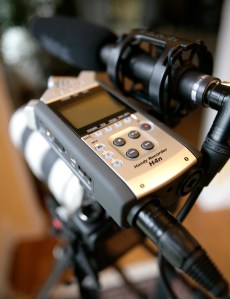
This weekend, I decided to familiarize myself with the new gear and do some testing. I was looking forward to getting back to my “purpose” for the trip and leave the administrative nightmares behind. I am not a shopper, nor am I a gadget freak. I buy new equipment when I have a need for it as opposed to because it exists. There’s something to be said about sticking with gear that you are comfortable with so that you can concentrate solely on the creative, but because of the pace of technology we are somewhat forced to keep current with our tools.

Whenever I add a new tool to my bag of tricks – I go through a process. First experiencing the thrill of something brand new in my hands. When I first took the Samson H4N Zoom out if it’s little coffin like plastic case and held it in my hands it was a sensual experience because of its design and what they make it out of. The second phase of the “new gear process” is reading the manuals and figuring out how things work. With the Zoom this was a bit frustrating and I am one who is already familiar with audio devices, so I can only imagine the frustration for someone who is not audio savvy. It’s such a sophisticated little mixer with so many choices that it took some time getting used to it. After much testing I settled on the 4Channel mode.

Over the weekend I tested both the Canon 5D and 7D cameras, recording sound with their internal mics as well as with a shotgun mic on camera plugged directly into the camera with an XLR to mini plug cord. I also tested both cameras, recording the audio separately through the H4N Zoom using the shotgun on the camera, and with the shotgun on a boom closer to the subject. Then I tested my Tram mic hard wired into the recorder and finally I did a test with the Tram and shotgun mics recorded on separate tracks on the Zoom.

After the tests, I brought both the video and audio files into Final Cut Pro. I had also purchased Philip Blooms 7D tutorial and in the workflow section he mentions how sluggish and problematic it is to work with the H264 files that come directly out of the camera. He recommends converting the files to Apple Pro Res LT either using compressor or MPEG StreamClip which is faster. I tried it both ways and he’s right the MPEG StreamClip is much faster. After I converted the files into Apple Pro Res LT, I imported them into Final Cut along with the WAV audio files. Incidentally, I shot everything at 24 frames a second and recorded the audio as WAV files at 48KHZ. In addition, I recorded sound through the camera, even though I was capturing my audio with an independent device. I knew I would use it as a reference when syncing the sound in post. My next step was to sync the audio files with the video/audio files coming from the camera. I used a clapper when recording so syncing was pretty easy. Philip Bloom mention using a software called PluralEyes for help with syncing audio and video in post but I have not yet purchased it. I did find out that you need to keep good organizational notes when shooting so that you can easily match up the audio files with the camera files later on. I decided that I like using the 4Channel mode with the digital recorder and using two external mics along with the stereo pair on the recorder. In post I can uncheck “stereo pair” and work on each channel independently.

So after a weekend of playing with the new gear, I went through the gamut of emotions from the thrill of newness to the incredible frustration of learning something new before the light bulb goes off. It will take a while to get to the third phase of the “new gear process” and that’s becoming very comfortable with the tools. And I can almost guarantee when that comfortable feeling start to happen, there will be something new that I’ll need to buy.

Add to FacebookAdd to DiggAdd to Del.icio.usAdd to StumbleuponAdd to RedditAdd to BlinklistAdd to TwitterAdd to TechnoratiAdd to Yahoo BuzzAdd to Newsvine

Telling Stories in Multimedia and Video

Rather than paraphrase here what I have already written, I will simply direct you to an article that I wrote for Adbase that just went online http://tiny.cc/h5kWV

Several tips on how to tell the “story” through the medium of motion to how to size images to achieve that timeless Ken Burns effect.

Bottom line – it’s all about the story.

Add to FacebookAdd to DiggAdd to Del.icio.usAdd to StumbleuponAdd to RedditAdd to BlinklistAdd to TwitterAdd to TechnoratiAdd to Yahoo BuzzAdd to Newsvine

Making Still Images Move

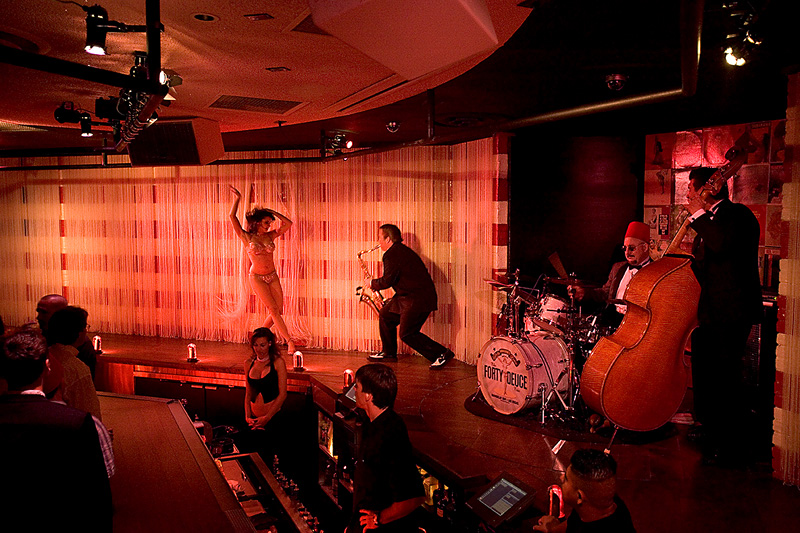
Burlesque
Burlesque club, Las Vegas (click image for motion sample)

I’m often asked how to prep still images and how to make them move in a multimedia/video piece.  My initial response to this question is to reply with a series of questions – “Why do you want to make your images move?” “What’s your motivation? What do you want to communicate to the viewer?” “Do you need sound and movement to better tell your story?”

I’m not one to do things just because I can – I need a reason.  For me a still image is an entity in and of itself – a moment in time to be studied and contemplated.  When I present still images in a multimedia presentation – those “moments in time” become part of a greater whole.  That new entity becomes a different visual message with sound and motion becoming the underlying spine of the piece.  Added information that’s needed to convey that particular story. The still images become sequences and the sound and movement of the piece create the “feel” and “pace” of the whole.

As far as the practical aspects of creating a multimedia piece – the first step is to choose an editing software that works into your workflow.  I use Final Cut Pro Studio on a Mac.  I use Final Cut Pro (within the suite)  if I don’t have a lot of images to edit but lately I’ve been using Motion (also included in the Studio suite)  – because it’s easy – once you know it. You don’t need the depth of these software applications  to create a simple multimedia piece.  There are plenty of software applications to choose from  – iMovie and FCP Express in the Apple family, Adobe Premiere (cross platformed if using an Intel Mac) , Sony Vegas for PC’s  and simpler programs like Soundslides or Audacity.

There are many tutorials on this subject – check out Ken Stone or Lynda.com – both great places to learn.  In the meantime I will share my recipe for how I size and prep my images for multimedia presentations.  Like anything else, there are hundreds  of ways to get to the same end – but these are my suggestions that I find work best.  Another note – I use large image sizes so that I when I bring the images into my editing timeline – I have room to zoom into the images without having to  enlarge them beyond 100% in the video application.

My sizing/prepping suggestions for still images:

RGB color mode

Srgb color profile for SD (standard def)

HDTV (Re.709) color profile for HD (hi def)

Tiff, PSD or PNG – better than Jpeg

Don’t over sharpen image – it will jitter on screen

Use de-interlace filter for web videos – but this is something you need to test – I don’t always like the effect this filter has.

Sizing – I always upsize my images 2.5 x needed for video timeline  if I will be moving them “Ken Burns” style. Below are different specs for HD and SD and different aspect ratios:

Standard Def – DV NTSC 4:3 – 1800x1350x72 (pixels)(res)

Standard Def – NTSC 16:9 – 2132x1200x72 (pixels)(res)

HD – 720p – 3200x1800x72 (pixels)(res)

HD – 1080i – 4800x2700x72 (pixels)(res)

It’s really never been easier to prep still images in an application like Photoshop because there are lots of built in presets. I always prep all my assets and import them into my editing software before I even begin to edit.  That way I don’t need to depart from the edit and lose a train of thought whenever I need to add a still image or other graphic.

Have fun – and when you do decide to move an image – ask yourself why first?

Convergence – Defining Yourself By Your Vision – Not Your Tool

It’s 4AM as I write this entry.  I can’t sleep.  That often happens when my mind is in overdrive as it has been all week – over stimulated by the process of editing video. I’ve also spent a lot of time this past week speaking with quite a few photographers who are working in both the still photography and video mediums.  Some shooters I spoke with got into video because the entry level became cheaper when hybrid cameras that shoot both stills and video came on the market.  Other people I talked to weren’t “camera operators” at all – they were DP’s or Directors of Photography on high-end commercial broadcast productions.

One question I asked these shooters was “What do you call yourself these days?” Personally I’m struggling with that question myself.  Am I a  photographer?, a videographer? (I hate that term), a DP?, a media producer?  Who am I ?  What do I call myself? I have yet to answer that question for myself, but the answers that I got from everyone I spoke with, ran the gamut, encompassing all the titles above.  As I replayed these conversations in my head, I realized that for me the problem was I was trying to define myself by my tool.  And that just doesn’t work.

The problem is if we define ours by our tools – then we are diminishing the value of our creativity or our visionboy_viewer in the process.  We aren’t placing the value on what is unique in all of us – our vision. At the same time we’re placing too much value on the tool – in this case the camera.  As technology accelerates the production of more sophisticated cameras that are cheaper and easier to use – and we’ve placed our value on being the technician – we’re in big trouble.  Because ultimately anyone with a vision who has the “ability” to realize that vision, can put together a crew of technicians to facilitate their vision or idea – and do it cheaper these days because of technology.  And there’s nothing wrong with that.
Professional photographers get defensive when a potential client places no value on what is unique about them (their vision) and approaches them with the attitude that if you won’t work for the prices they dictate – they will just find another photographer.  But what they are really saying is that they feel that they can “just” find another camera operator. The problem is that these photographers haven’t presented their vision and because of that they are perceived as being interchangeable. That’s not a good place to be and never will be.  And for that reason when a professional still photographer comes to me and says that they are interested in getting into video and asks the question “What video camera should I buy?” I gently tell them – well sometimes not so gently tell them – it’s not about the camera.

How does one define what they are?  Great question that has a lot of answers, as it should.  Technology is amazing – but it’s the human part of the process that excites me because we’re all so different in how we see.

Video, Editing and Chroma Key (green screen)

Even though I started shooting and editing video some 10 years ago – I can honestly say that I still have a lot to learn.  The “learning” part of my craft has been non-stop.  I continue to learn as technology constantly pushes us all in that direction.  But I love it.  I love raising my bar every chance I get.  And these days, even though the learning curve may be steep in certain aspects of video production – it’s also a lot easier to access information and help than it was 10 years ago.  Again – thanks to the volumes of information online – at the click of a button.

I love the editing process of video production because this is really where I craft the story.  I can get totally lost in the story and how I can mold that in whatever direction I choose in the edit room.  But I’m not a professional editor and I have the utmost respect for what a pro brings to this part of the process.  So I lay down my rough cut – to get the storyline down and then hand it off to a pro to take it to the next level.

I’m editing a recent shoot that was quite challenging on all accounts.  A lot of what was shot, was shot on “green screen”. Green screen or “chroma key” is the process of removing a background color, – green for video – blue for film – so that the “subject” or “object” can be placed into another background in post. There is a lot of info out there on green screens so I won’t go into it in depth, but the biggest thing you need to know is how to properly shoot green screen so you won’t have a major melt down in post – or won’t have to spend a fortune for an editor to clean up your mistakes.  ResidentialExterior_NewTech

A couple of tips for shooting on green screen:

•    Turn off edge enhancements or sharpening in Picture Profiles – in camera menu
•    Create a new Green screen Picture Profile w/o sharpening
•    Keep subject lighting off background
•    Keep background lighting off subject
•    Keep green screen as far away from subject as possible
•    Minimize seams, wrinkles, folds
•    Even out your green screen lighting within 1/2 stop
•    Brightness level should be about one stop under key light on your subject.
•    Light your subject complimentary to your inserted background
•    Don’t use dimmers – changes color temp toward red – not good for keying
•    Create an edge or separation light – keep it subtle!!
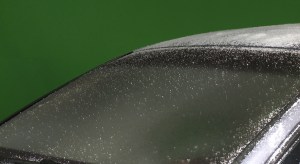
•    Watch out for reflective objects and surfaces (CAR SURFACE) that can pick up green screen

So if you’ve successfully shot a good clean composition as described above – then of course you need to put things together in post. Windshield OutsideThis used to be a tedious process and would involve a lot of work in post production.  But thanks to some incredible plug-ins available – you can get a pretty amazing “key” without a lot of hours in the editing room.
I found a product that really helped me out.  DVmatte Blast and DVmatte Pro from www.dvgarage.com. These plug-ins will work inside Final Cut Pro as well as Motion.  I chose to work within Final Cut.  I was amazed by not only how easy it was to use but by the price as well.  DVmatte Blast was $99 but I purchased DVmatte Pro for $199 because it gave me more “tweaking” options.  And as always whenever I need to learn a new piece of software – I went to http://www.lynda.com.  So instead of laboring with greens screens in post for an entire day – I got the job done in a matter of a couple of hours – and I had a lot of compositions to make.

I love to learn but I also like to lead some sort of a personal life – away from the computer.  And these days – thanks to a little help from my “friends” I’m achieving a nice balance.

What Camera Should I Buy?

If I had a dollar for everytime someone asked me what camera they should buy – I could retire.  These days I get a lot of “what video camera should I buy?”  That question is almost impossible to answer without more information.  So I usually reply with my own onslaught of questions “What are you going to be shooting?”, “What editing software will you be using?” , “Are you concerned about getting “natural sound” or will you be using the “video” and not the “audio” from the camera?”.  And of course the big question “What’s your budget?”.

One thing that complicates making a choice in video cameras is that unlike still cameras – video cameras shoot different types of files – mpeg2, native quicktime, HDV, AVCHD.  In addition some shoot to tape, some shoot to cards and some shoot to discs.  Then of course there’s the basic consideration of SD or HD.  And not all HD files are alike.  Sounds confusing and overwhelming doesn’t it?  And it can be so my advice is always to work backwards.

Start by identifying the type of shoots you’ll be doing – corporate interviews or beautiful imagery intended to be shown to a music track.  Where will it be shown?  Broadcast? Web? DVD’s?  And how will you edit it? What platform? What editing software? To help guide you with selecting the right camera for the editing software you have or intend to purchase I have come across some great links to compatablity charts. Adobe Premiere and Final Cut This is a great place to start to see if that reasonably priced prosumer camera that outputs AVCHD files will work with the prosumer version of the editing program you have or will you have to purchase the full pro program.  I have seen lots of posts on listservs with people who need help editing files from the camera they just bought and loosing a lot of time in the process, not to mention the frustration they put themselves through.

There’s all kinds of cool cameras coming on the market everyday and lots of people jumping on the bandwagon as seen in the success of the RED and the hybrid Canon 5D II. http://tiny.cc/KmAOK There’s a lot of great things about both these cameras but before you plunk down the money – ask yourself if it’s the right tool for you.  Unless money is no object, you’ll want to make sure that your investment in a camera will serve your purpose.  There’s a tool for everything.  Here’s another interesting camera that recently debuted.  If you’re an action adventure shooter – it could be the camera for you.  http://tiny.cc/3owdX

My advice is to make a pros and cons list before you even look at cameras.  That way you won’t be overwhelmed by the tools – but will choose the tool that is the right tool and the “means to your end”.

Editing and the Story

I’ve grown to love the editing part of the video production process.  It’s where I “craft” the story and take it where I want it to go.

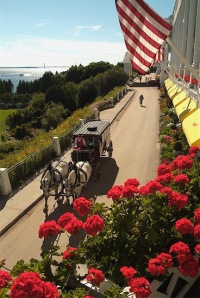
Last Spring I attended a conference at the Grand Hotel in Mackinac Island, Michigan.  The Grand Hotel, Mackinac Island, MichiganWhile staying at this historic gem, my goal was to create a short web video on the hotel and the island.  I shot the property in a dozen different ways getting b-roll footage of carriages, guests on the porch, tea in the parlor, the orchestra and other areas of the hotel as well as scenes in town. I also interviewed third generation owner and President, Dan Musser III and carriage driver Tom McCarthy.  Those interviews as well as some soundbites from a talk given by concierge Bob Tagatz – gave me my narrative track.

When I returned I gathered all my assets – interviews, b-roll and music and started to layout the story. Generally, I lay down my best soundbites first.  This drives the story.  I’ll then go through all my b-roll and live action shots and select the best clips that best illustrate the narrative track.  I was fortunate on this piece because I was able to capture footage of the harpist at the Grand Hotel and this not only provided me with some nice visuals, but it gave me a music track to work with that made sense in the context of the story.

After piecing together the story in Final Cut Pro, I then went  back and “cut” it.  Given time, I may even live with it a bit, going back and cutting more each time giving it more punch.  I’ve uploaded my first two cuts on vimeo.  Here’s a link to my latest rough cut. http://www.vimeo.com/5889700 I’ll probably live with it a bit and then go back and cut out another 20%.  It’s always hard to cut but it makes the piece stronger and these days – people don’t take the time to look at long web videos.

10 Great Links For Video Resources

If you’re like me, no matter how much you think you know – when it comes to video production and editing – there’s always something you don’t know.
I have been helped on numerous occasions with a little help from my friends and great resources.

Here’s my Top 10 List of Online Resources and Blogs for Video Info

http://forums.creativecow.net/ Info, forums and tutorials
http://www.dvinfo.net/ Tutorials and interactive forum.
http://www.2-popforums.com/forums/ Forums for video discussions.
http://discussions.apple.com/index.jspa Apple’s discussion forums
http://tiny.cc/BbKwL Ken Stone – Final Cut Pro guru
http://digitaljournalist.org/ Monthly online magazine
http://tiny.cc/qcrWh Digital Juice -Tutorials and forums.
http://tiny.cc/vfKr0 Chuck Fadely’s Blog – great info on video
http://www.photoshopforvideo.com/ Photoshop Tips
http://www.lynda.com Training for just about anything!

Editing Anywhere

My partner and I recently completed a documentary called Freedom’s Ride. We documented two groups of high school students from diverse backgrounds as they retraced the Civil Rights Movement of the 1960’s. http://vimeo.com/4106326.

It was the first time we went HD and the first time we went tapeless. The shoot and working on the fly is a story in itself, but for this entry I’ll talk about the edit. Since the shoot itself was of the trip and interviews, the material was brought into the system along the way. When I got to home base, I transfered the files into mov files for Final Cut, imported them into my project and stored the media on external hard drives.

My intitial rough cut was 90 minutes long and was only intended for the students and teachers who had taken the journey. I wanted to make sure that all the kids were included in that edit. It also became the structure of the piece.

After that first cut, I got involved in other things,  but I knew that I was headed up to Maine in a month and I wanted to do the next edit working completely mobile while there.

I packed my MacBook Pro loaded with Final Cut Pro Suite, one external hard drive, a zip strip, headphones and a mouse into a relatively small backpack and headed up to Rockport, Maine. While my partner took The Platypus Workshop, I’d set up my portable editing suite at either the Rockport or Camden Library. It was quiet, peaceful and the Camden Library had the added plus of a beautiful seascape right out the window.

By the end of 9 days, I had cut the piece down to 28 minutes. My goal had been to finish before I headed for home. I not only made my goal, I got to show it to the Platypus participants who gave it a thumbs up.